.?unique=8020a81)
Running large language models (LLMs) on your own machine has never been easier—and Ollama is one of the simplest ways to do it. Whether you want to run Llama 3, Mistral, DeepSeek, or other open-source models, Ollama gives you a lightweight, command-line-first experience with minimal setup.
This quick guide walks you through installing Ollama, downloading models, and running them locally.
Hardware Prerequisites
| Requirement | Minimum | Recommended | Notes |
|---|---|---|---|
| RAM | 8GB | 16GB+ | For 7B models; scale with size |
| Storage | 5GB free | 50GB+ | Per model (e.g., Gemma3:1B ~1GB) |
| GPU | None (CPU ok, at least 4 cores is recommended) | NVIDIA RTX 30xx+ (8GB VRAM) | Enable with OLLAMA_NUM_GPU_LAYERS=999 env var |
Installing Ollama on Windows
Go to Ollama Website and download for Windows
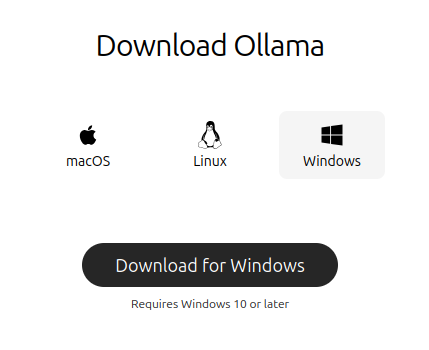
And Install Just like any other software
Installing Ollama on Linux
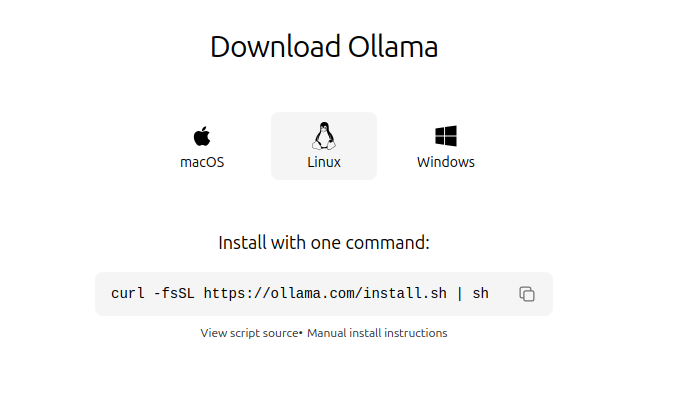
Run The following command:
>> curl -fsSL https://ollama.com/install.sh | sh
This command will install the Ollama service on your machine
Verifying the Install

Run The following command:
>> ollama --version
Searching For Models
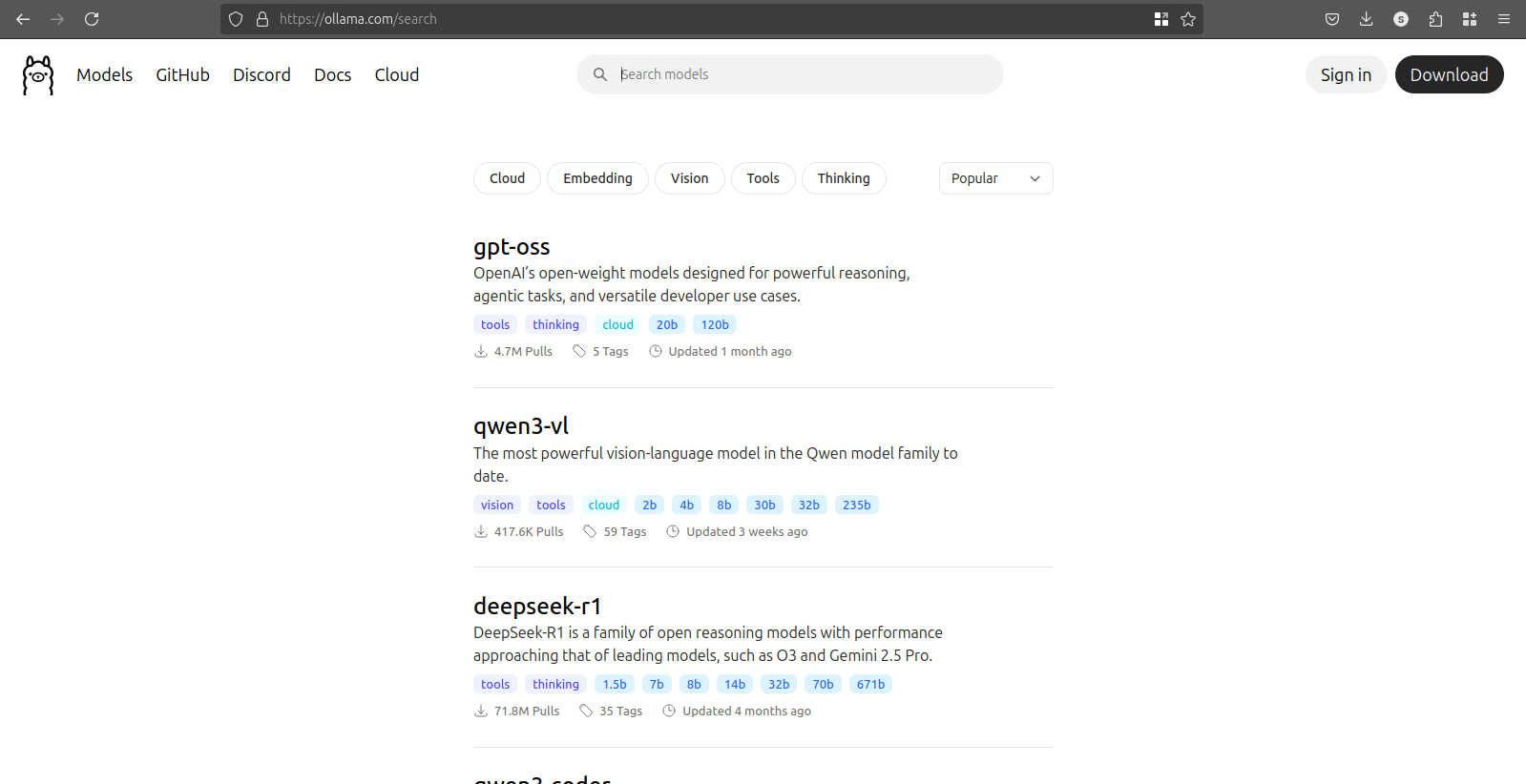
You can search for Models from Ollama Model Search
Here you can see the list of all the Models Available
You can select the Model of you choice
Installing Models
To Download and Run Model directly in Terminal Use command
>> ollama run gemma3
Usage with Python
To Download Model
>> ollama pull gemma3
Then install Ollama’s Python library:
>> pip install ollama
Python Program to chat with model
from ollama import chat
from ollama import ChatResponse

response: ChatResponse = chat(model='gemma3', messages=[
  {
    'role': 'user',
    'content': 'Why is the sky blue?',
  },
])
print(response['message']['content'])
# or access fields directly from the response object
print(response.message.content)
Usage with Javascript
To Download Model
>> ollama pull gemma3
Then install Ollama’s JavaScript library:
>> npm i ollama
JavaScript Program to chat with model
import ollama from 'ollama'

const response = await ollama.chat({
  model: 'gemma3',
  messages: [{ role: 'user', content: 'Why is the sky blue?' }],
})
console.log(response.message.content)
Allowing Ollama Access from External Network in Windows
- Open the Control Panel.
- Click System and Security, then System
- Click Advanced system settings on the left
- Inside the System Properties window, click the Environment Variables… button.
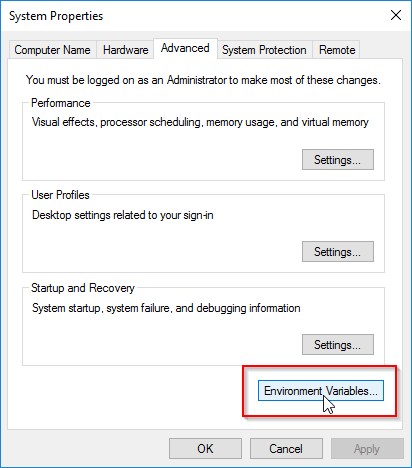
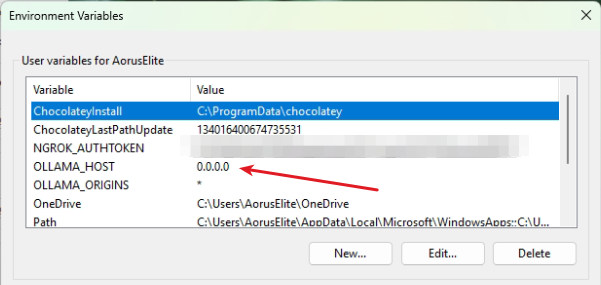
Create a New Environment variable
OLLAMA_HOST = 0.0.0.0 # configure any interface or IP of your choice
0.0.0.0 allows Access from any Interface
You can choose to allow from any specific interface
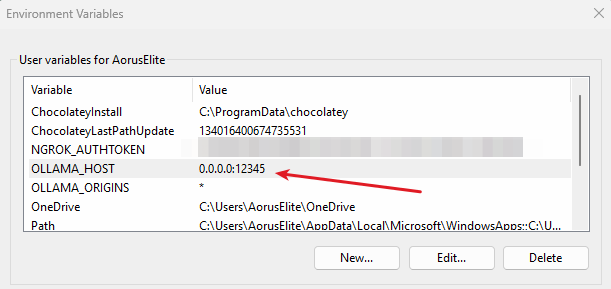
OPTIONAL to change the Listening PORT you can rather use following code
here we have changed the port from 11434 to 12345 you can choose any port
OLLAMA_HOST = 0.0.0.0:12345
Security Note: "Warning: Binding to 0.0.0.0 exposes the API publicly—use firewall (e.g. allow from 192.168.1.0/24 to any port 11434 on windows) or restrict to localhost (127.0.0.1) for production."
Allowing Ollama Access from External Network in Linux
To Set the OLLAMA_HOST Variable in Linux
sudo systemctl edit ollama
Alternatively, create an override file manually in
/etc/systemd/system/ollama.service.d/override.conf
Now Enter and save the Following
[Service]
Environment="OLLAMA_HOST=0.0.0.0"
OPTIONAL to change the Listening PORT you can rather use following code
here we have changed the port from 11434 to 12345 you can choose any port
[Service]
Environment="OLLAMA_HOST=0.0.0.0:12345"
0.0.0.0 allows Access from any Interface
You can choose to allow from any specific interface
Now reload the daemon and restart the Ollama service
>> sudo systemctl daemon-reload
>> sudo systemctl restart ollama.service
To verify you can use command
>> ss -lt | grep 11434

Security Note: "Warning: Binding to 0.0.0.0 exposes the API publicly—use firewall (e.g., ufw allow from 192.168.1.0/24 to any port 11434 on Ubuntu) or restrict to localhost (127.0.0.1) for production."
Wrapping Up: Unlock Local AI with Ollama
You've now got Ollama up and running, from simple terminal chats to full API integrations—empowering privacy-focused, cost-free AI on your terms. Experiment with models like Gemma3 for multimodal tasks or scale to custom apps. If you hit snags, check the Ollama GitHub or community forums.
What's your first local project? Share in the comments below, and stay tuned for our next guide on fine-tuning LLMs. Happy coding!